주요 메서드 분석
1. 생성자
public Form1()
{
    InitializeComponent(); // 도구 초기화
    GameSetUp(); // 게임 설정
    Reset(); // 게임 초기화
    //this.KeyPreview = true; // 방향키 이벤트를 폼에서 먼저 받도록 설정
}
> InitializeComponent() 는 WinForms 생성시 처음부터 들어가있는데, 도구들을 모두 초기화하는 역할을 함
> GameSetUp()은 사용자 정의 메서드임
> Reset()은 사용자 정의 메서드임
> this.KeyPreview = true 는 포커스를 Form으로 가게 만들도록 하는데, 데스크톱은 이게 없어도 포커스가 Form으로 가있는 반면 노트북은 아니라서 필수적으로 해줘야 함(안하면 방향키 입력을 Form이 아닌 Label, PictureBox 등이 받아버림)
2. KeyDown 이벤트
> KeyDown += KeyIsDown;
private void KeyIsDown(object sender, KeyEventArgs e)
{
    if (!gameover)
    {
        if(e.KeyCode == Keys.Up && !jumping)
        {
            jumping = true; // 점프 상태로 변경
        }
        if(e.KeyCode == Keys.Down && !jumping)
        {
            if(changeAnim == false)
            {
                trex.Image = Properties.Resources.dino_crouch; // 티렉스 이미지 웅크리기로 변경
                changeAnim = true; // 애니메이션 변경 상태 변경
            }

            trex.Top = 352; // 티렉스 위치 변경
        }
    }
}
> 키가 눌렸을 때 발생하는 이벤트임
> Keys.Up(위 방향키)인 경우는 점프(trex 움직임은 bool jumping 을 가지고 GameTimerEvent()에서 구현함)

▲ Keys.Down(아래 방향키)인 경우 엎드리기(Resource에 있는 dino_crouch를 사용하여 이미지를 변경함 => bool changeAnim도 변경)
3. KeyUp 이벤트
> KeyUp += KeyIsUp;
private void KeyIsUp(object sender, KeyEventArgs e)
{
    if(e.KeyCode == Keys.Down && !gameover)
    {
        trex.Image = Properties.Resources.dino_run; // 티렉스 이미지 달리기로 변경
        trex.Top = 313; // 티렉스 위치 변경
        changeAnim = false; // 애니메이션 변경 상태 변경
    }
    if(e.KeyCode == Keys.Enter && gameover)
    {
        Reset(); // 게임 초기화
    }
}
> KeyDown이 눌렸을 때라면 KeyUp은 떼어졌을 때 발생하는 이벤트임

▲ Keys.Down(아래 방향키)가 떼어졌을 때 Resources에 있는 dino_run(초기상태)로 다시 변경, bool changeAnim도 변경함
> Keys.Enter(엔터키)와 bool gameover인 경우에만 reset()함
4. Paint 이벤트
> Paint += FormPaintEvent;
private void FormPaintEvent(object sender, PaintEventArgs e)
{
    Graphics Canvas = e.Graphics; // e.Graphics 전달ㅎ

    // 배경 이미지 그리기
    Canvas.DrawImage(backgroundImage, bgPositionX, bgPositionY, backgroundWidth, backgroundHeight);
    Canvas.DrawImage(backgroundImage2, bg2PositionX, bgPositionY, backgroundWidth, backgroundHeight);

    // 부드러운 그래픽 설정
    Canvas.SmoothingMode = System.Drawing.Drawing2D.SmoothingMode.AntiAlias;

    // 고품질 이미지 설정
    Canvas.InterpolationMode = InterpolationMode.HighQualityBicubic;
}
> Graphics Canvas = e.Graphics는 프로퍼티 get을 사용하는 방법임(▼ int로 예를 든 것 참고)
class MyClass{
    private int myField;
    public int MyField{
        get{
            return myField;
        }
        set{
            myField = value;
        }
    }
}

MyClass obj = new MyClass();
obj.MyField = 3; // set
int yourNum = obj.MyField; // get
> DrawImage는 Image 객체와 특정 위치, 특정 너비와 높이를 가지고 이미지를 그림.
> SmoothingMode는 안티에일리어싱(외곽선을 부드럽게 하는 속성) 기능
> InterpolationMode는 이미지 확대 및 축소시 부드러움을 추가하는 기능(DrawImage에서 실제 사진보다 크거나 작게 그려지면 픽셀이 구겨지는데 이를 해결함)
5. Tick 이벤트
> Tick += GameTimerEvent;
private void GameTimerEvent(object sender, EventArgs e)
{
    MoveBackgrounds(); // 배경 이동
    this.Invalidate(); // 폼 다시 그리기

    MoveObstacles(); // 장애물 이동

    lblScore.Text = "Score: " + score; // 점수 표시

    // trex를 기준으로 피격 박스 위치 조정
    hitBox.Left = trex.Right - (hitBox.Width + 20);
    hitBox.Top = trex.Top + 5;

    if (jumping)
    {
        trex.Top -= speed; // 위로 이동

        if(trex.Top < 150) // 최고점 도달
        {
            speed = -10; // 아래로 이동
        }
        if(trex.Top > 312) // 최저점 도달
        {
            jumping = false; // 점프 상태 해제
            trex.Top = 313; // 위치 초기화
            speed = 10; // 속도 초기화
        }
    }

    foreach(PictureBox x in obstacles)
    {
        if (x.Bounds.IntersectsWith(hitBox.Bounds))
        {
            GameTimer.Stop();
            trex.Image = Properties.Resources.dead;
            gameover = true;
            hitSound = new SoundPlayer(Properties.Resources.hit);
            hitSound.Play();
            trex.Top = 313;
            lblScore.Text = "press Enter to Restart";
        }
    }
}
> Tick은 interval(15)마다 이벤트를 발생시킴
> MoveBackgrounds() / MoveObstacles()를 호출함(아래 참고)
> 점수표시 및 히트박스 초기화
> Invalidate()는 다시 그리기를 요청하는 기능(이 경우 Paint 이벤트가 다시 호출됨)
> KeyDown 이벤트에서 바뀐 jumping을 가지고 실제 점프를 구현
: speed(여기선 10)만큼 trex를 위로 이동시킴
최고점(149)인 경우 speed를 -10으로 바꿔 다시 아래로 이동시킴
최저점(313)인 경우는 바닥을 뜻하므로 jumping을 변경하고, 위치와 speed도 초기화시킴
> foreach~ (모든 장애물들 반복)
: 장애물의 사각형 범위(x.Bounds)가 히트박스 사각형 범위(hitbox.Bounds)와 겹친 경우(IntersectsWith)
GameTimer(타이머)는 멈춤(Stop)
▼ trex 이미지는 dead로 변경

hitSound는 Resource에 저장되어 있는 hit 소리를 가져와 들려줌(Play)
lblScore 출력문 변경
6. GameSetUp()
> 생성자에서 처음이자 마지막으로 호출되는 메서드임
> 배경화면 및 장애물, 점수라벨, 피격박스 등을 초기화하는데 사용됨
private void GameSetUp()
{
    // 배경화면 초기화
    backgroundWidth = 900;
    backgroundHeight = 450;
    // 첫번째 배경은 backgroundWidth의 0 위치에, 두번째 배경은 backgroundWidth의 너비 위치에(끝에)
    bg2PositionX = 900;
    backgroundImage = Properties.Resources.bgPixels;
    backgroundImage2 = Properties.Resources.bgPixels;

    // 더블버퍼 >> 애니메이션 부드럽게(깜빡임 제어)
    this.DoubleBuffered = true;
    this.SetStyle(ControlStyles.OptimizedDoubleBuffer, true);

    // 폼 너비
    // Form에서 실제 컨트롤들이 놓일 수 있는 크기 중 너비(Width)값
    formWidth = this.ClientSize.Width;

    // 폼 배경색
    this.BackColor = Color.Black;

    // 장애물 리스트에 장애물 추가
    obstacles.Add(obstacle1);
    obstacles.Add(obstacle2);
    obstacles.Add(obstacle3);

    // 점수 Lable 설정
    newFont.AddFontFile("font/pixel.ttf"); // 폰트 파일 추가
    lblScore.Font = new Font(newFont.Families[0], 30, FontStyle.Bold); // 폰트 크기 및 굵기
    lblScore.ForeColor = Color.White; // 폰트 색상
    lblScore.BackColor = Color.Transparent; // 폰트 배경색
    lblScore.Text = "Score: 0"; // 초기 점수

    // 피격 박스 설정
    hitBox.BackColor = Color.Transparent;
    hitBox.Width = trex.Width / 2;
    hitBox.Height = trex.Height - 10;

    this.Controls.Add(hitBox); // 폼에 피격 박스 추가
    //hitBox.BringToFront(); // 피격 박스를 맨 앞으로
    gameover = false; // 게임 오버 초기화

    attackR = random.Next(12, 20); // 피격 타이머 랜덤 설정
}
> bgPositonX는 0으로 초기화되어 있음(필드 선언과 동시에 초기화), bg2PositionX가 900인 이유는 너비가 900인 backgroundImage 뒤에 backgroundImage2를 그대로 붙이기 위함임
> DoubleBuffered와 SetStyle(ControlStyles.OptimizedDoubleBuffer, true)는 Invalidate() 등으로 호출되는 Paint 이벤트가 배경을 지우고 다시 그리는 과정에서 깜빡이는 것을 없애주어 매끄럽게 보이기 위해 사용한다고 함
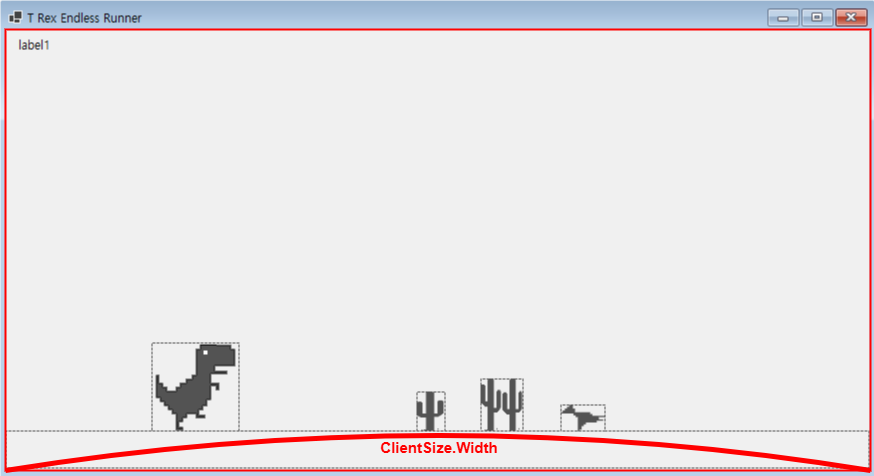
▲ ClientSize.Width는 실제 컨트롤들이 놓일 수 있는(실질적으로) 너비를 의미함
> 점수 라벨에 들어갈 문자에 대한 폰트설정은 resources 중 pixel.ttf를 사용함


▲ 히트박스는 trex의 넓은 히트박스를 좁게 만들어 줌
> attackR 은 attckTimer와 함께 박쥐(obstacle3)를 움직일 때 사용(attckR == attckTimer 인 경우 flyingAttck을 활성화하고, flyingAttack인 경우에만 obstacle3를 이동시킴)
7. Reset()
> 생성자 및 KeyUp 중 Keys.Enter인 경우 호출되는 메서드
private void Reset() // 게임 초기화
{
trex.Image = Properties.Resources.dino_run; // 티렉스 이미지 달리기로 초기화
trex.Top = 313; // 티렉스 위치 초기화
// 장애물 위치 랜덤 설정
obstacle1.Left = formWidth + random.Next(100, 200); // 장애물1 위치 초기화
obstacle2.Left = obstacle1.Left + random.Next(600, 800); // 장애물2 위치 초기화
obstacle3.Left = obstacle2.Left + random.Next(200, 400); // 장애물3 위치 초기화
GameTimer.Start(); // 게임 타이머 시작
score = 0; // 점수 초기화
attackTimer = 0; // 피격 타이머 초기화
speed = 10; // 속도 초기화
gameover = false; // 게임 오버 초기화
changeAnim = false; // 애니메이션 변경 초기화
jumping = false; // 점프 초기화
cactusSpeed = 10; // 선인장 속도 초기화
}> trex 초기화
> obstacle들 초기화
> 타이머 이벤트(GameTimer) 시작(Start)
> 필드 초기화
8. MoveBackgrounds()
> 배경화면을 왼쪽으로 이동시키는 메서드
private void MoveBackgrounds()
{
    // 배경 왼쪽으로 이동
    bgPositionX -= 1; // 0부터 1단위로 감소
    bg2PositionX -= 1; // 900부터 1단위로 감소

    // 배경이 화면 밖으로 나가면 이전 배경의 오른쪽에 위치시킴
    if (bgPositionX < -backgroundWidth)
    {
        bgPositionX = bg2PositionX + backgroundWidth;
    }
    if(bg2PositionX < -backgroundWidth)
    {
        bg2PositionX = bgPositionX + backgroundWidth;
    }
}
> backgroundImage와 backgroundImage2를 -1씩(왼쪽으로) 이동시킴
> backgroundImage의 위치(bgPositonX)가 -900만큼(backgroundWidth는 900임) 왼쪽으로 이동할 경우 뒤 따라오는 이미지(backgroundImage2) 뒤로 초기화시킴
9. MoveObstacles()
private void MoveObstacles()
{
    plusOneSound = new SoundPlayer(Properties.Resources.plusone); // 점수 획득 사운드

    if (!flyingAttack)
    {
        obstacle1.Left -= cactusSpeed; // 장애물1 이동
        obstacle2.Left -= cactusSpeed; // 장애물2 이동
    }
    else
    {
        obstacle3.Left -= cactusSpeed; // 장애물3(박쥐) 이동
    }

    if(attackTimer == attackR)
    {
        flyingAttack = true; // 박쥐 공격 상태로 변경
        attackR = random.Next(12, 20); // 피격 타이머 랜덤 설정
    }

    if(attackTimer == 0)
    {
        flyingAttack = false; // 박쥐 공격 상태 해제
    }

    if(obstacle1.Left < -100)
    {
        obstacle1.Left = obstacle2.Left + obstacle2.Width + formWidth + random.Next(100, 300); // 장애물1 위치 초기화
        attackTimer += 1;
        score += 1; // 점수 증가
        plusOneSound.Play(); // 점수 획득 사운드 재생
    }
    if(obstacle2.Left < -100)
    {
        obstacle2.Left = obstacle1.Left + obstacle1.Width + formWidth + random.Next(100, 300); // 장애물2 위치 초기화
        attackTimer += 1;
        score += 1; // 점수 증가
        plusOneSound.Play(); // 점수 획득 사운드 재생
    }
    if(obstacle3.Left < -100)
    {
        obstacle3.Left = formWidth + random.Next(300, 400); // 장애물3 위치 초기화
        obstacle3.Top = flyingPosition[random.Next(flyingPosition.Length)]; // 장애물3 위치 랜덤 설정
        attackTimer -= 1;
        score += 1; // 점수 증가
        plusOneSound.Play(); // 점수 획득 사운드 재생
    }

    if (score >= 10) cactusSpeed = 12;
    if (score >= 20) cactusSpeed = 14;
    if (score >= 40) cactusSpeed = 17;
    if (score >= 70) cactusSpeed = 20;
    if (score >= 100) cactusSpeed = 25;
}
> flyingAttack이 True가 되는 조건은 attackTimer과 attackR이 같아지는 경우 뿐임
attackTimer는 obstacle1, 2를 통과했을 때 +1되고, obstacle3을 통과했을 때 -1이 됨
GameSetUp()에서 12부터 19까지의 난수로 초기화된 attackR과 함께 처음 조건문이 실행된다
obstacle3이 계속 이동하여 attackTimer가 0이 되서야 flyingAttack이 0인 조건이 발생하고 obstacle1, 2가 정상적으로 왼쪽으로 이동함
> 장애물은 cactusSpeed 필드를 통해 속도가 조절되고, 위치가 -100이 되면 위치가 랜덤하게 초기화됨
> score에 따라 cactusSpeed를 증가시킴(난이도 조절)
참고
'LMS 7 > 개발일지' 카테고리의 다른 글
| 25.10.13 개발일지 / C# 명코파크 (1일차) (0) | 2025.11.13 |
|---|---|
| 25.10.09 개발일지 / C# TRex - TCP IP 네트워크 구상 (0) | 2025.11.13 |
| 25.10.07 개발일지 / C# T-Rex Endless Runner - 2 / 이벤트, 필드, 메서드 등 멤버 정의 (0) | 2025.11.13 |
| 25.10.06 개발일지 / C# T-Rex Endless Runner - 1 / 프로젝트 생성 및 디자인 배치 (0) | 2025.11.11 |
| 25.10.02 개발일지 / C# 4(2) (Chapter20~22) (0) | 2025.11.11 |